Monte Carlo renderer
The Monte Carlo renderer is the studio's slower, more realistic renderer. Rather than drawing a finished picture in one pass, it builds the image up sample by sample, starting grainy and sharpening the longer the stone is left alone. It traces colour across the whole visible spectrum rather than a handful of fixed colours, which gives it smoother, more natural fire, and it draws frosted facets as truly rough glass.
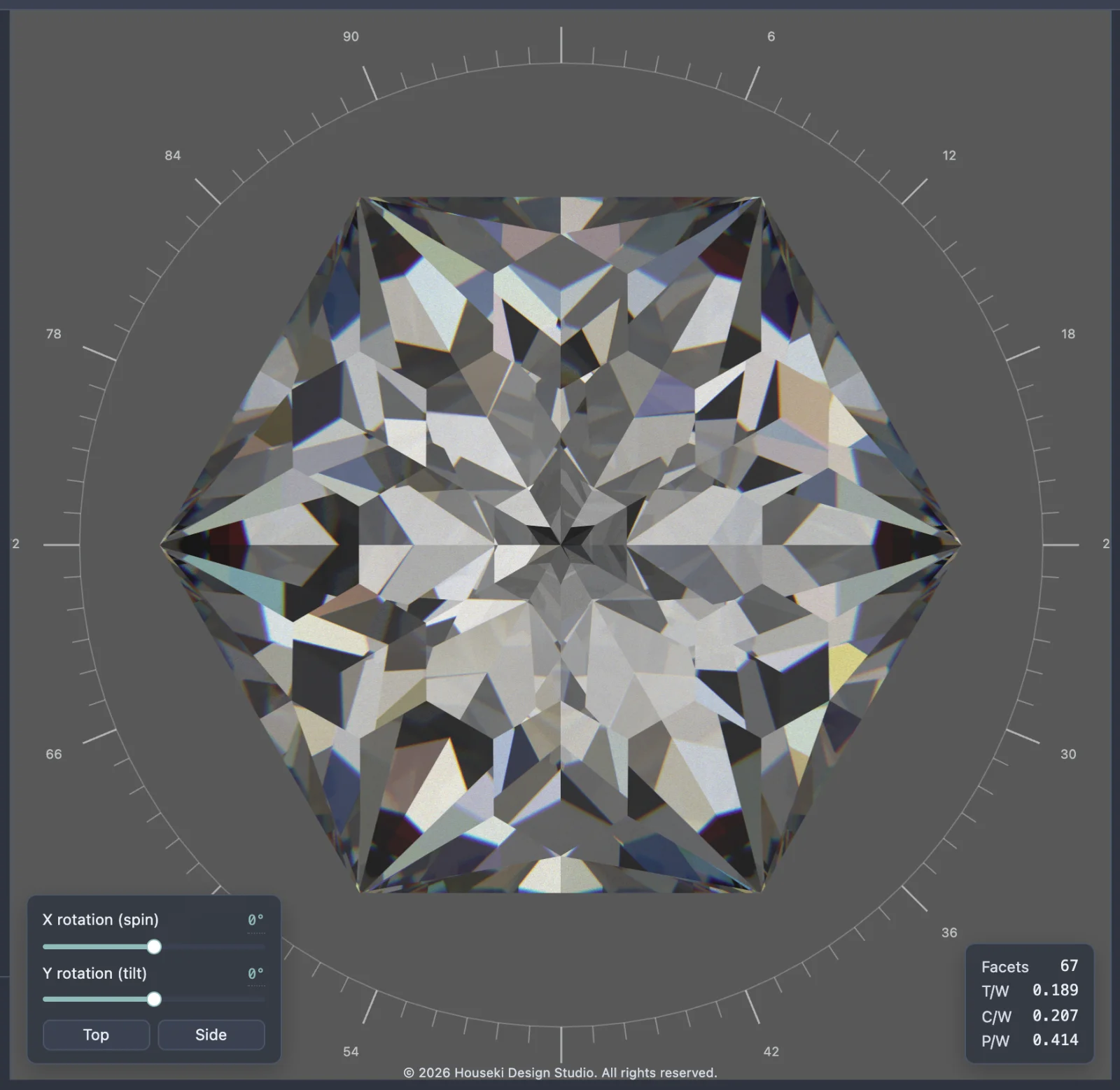
Switching to it
Open the dropdown at the top of the Tracing section of the settings and choose Monte Carlo (the other choices are Deterministic and Flat – see the Deterministic renderer page for those). Hovering the dropdown shows a tooltip describing the selected renderer.
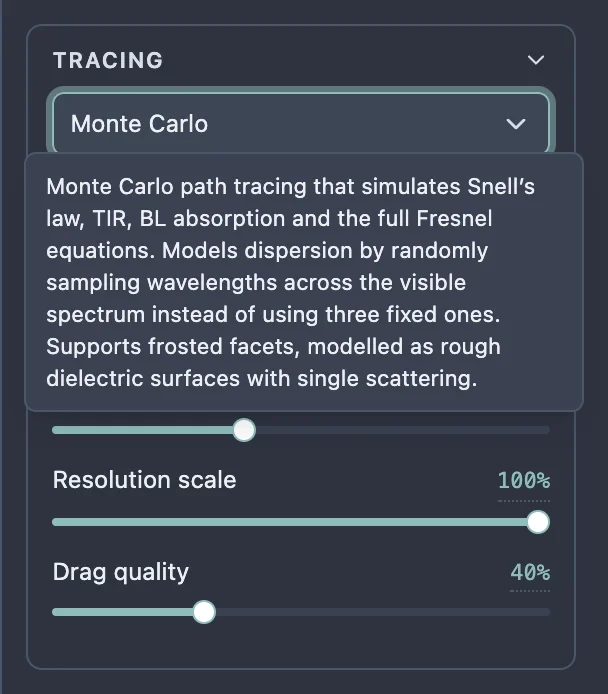
The first time the Monte Carlo renderer is selected in a session there can be a brief pause before the first image appears. Switching back and forth after that is instant.
An image that sharpens over time
The moment the Monte Carlo renderer is selected, or anything about the view or the stone changes, the picture restarts from scratch: a single noisy, grainy sample. Left alone, it keeps adding more samples on top of each other, and the noise fades as more accumulate. A line under the Tracing settings reports progress as a percentage and how long it has been running, ending "(converged)" once it stops improving – for example, "100% complete, over 12 seconds (converged)."
On a stone with fire, the first few samples also look darker and warmer in colour than the settled image, because each sample sees the stone in just one colour of light. The true colours come through within a few dozen samples.
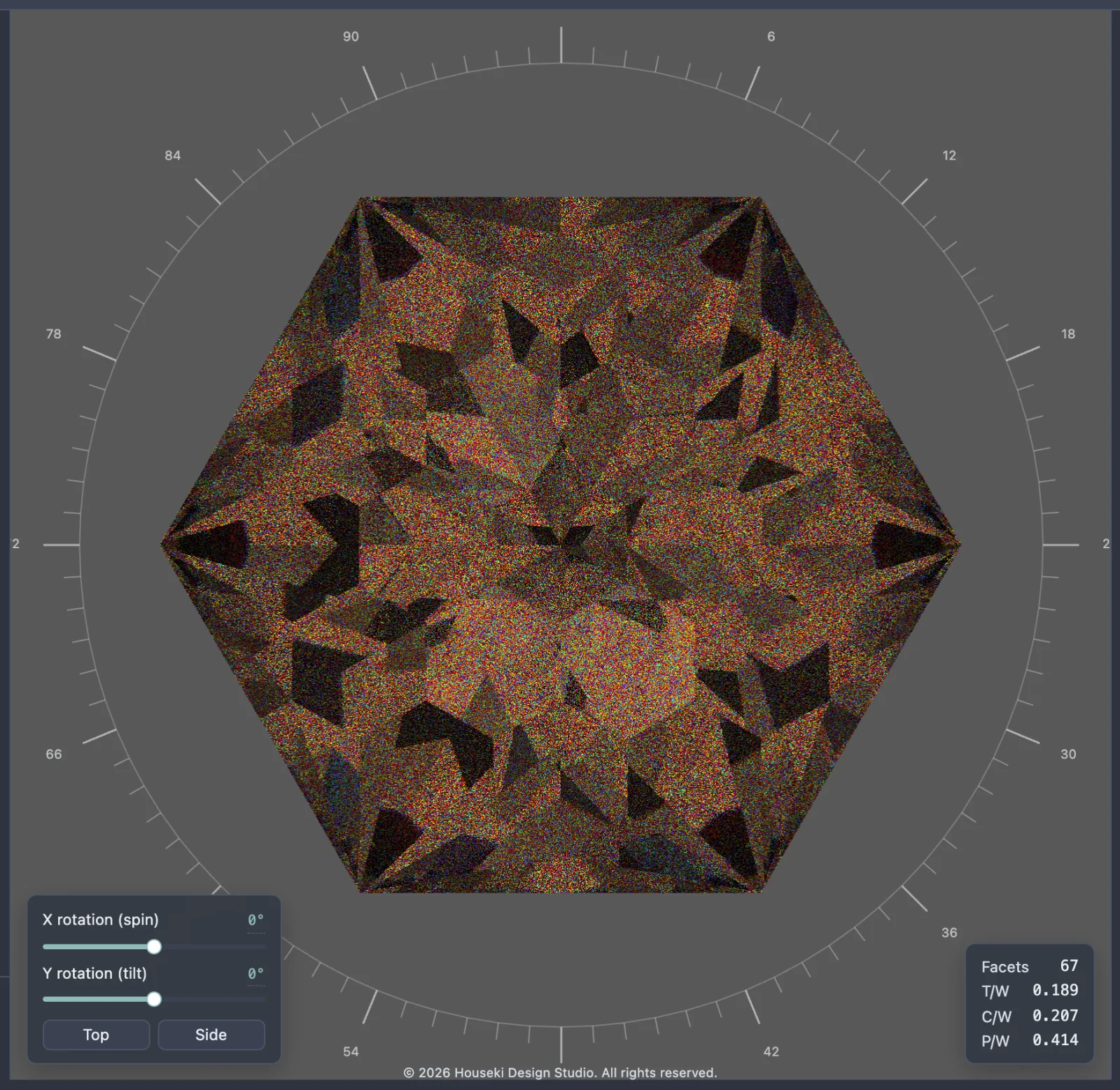
Any change restarts it. Turning the stone, changing a material, moving a slider, or resizing the window all throw away the samples gathered so far and start again from a single noisy sample. That includes the resolution and quality settings below: raising them buys a sharper final image at the cost of restarting the wait.
The physics it simulates
The Monte Carlo renderer follows the same physical rules as the Deterministic renderer – Snell's law bending light as it crosses into and out of the stone, total internal reflection giving the stone its brilliant flashes, the full Fresnel equations deciding how much of the light at each surface reflects versus passes through, and Beer-Lambert absorption giving a coloured stone its body colour – see that page for what each looks like on the stone.
Where it differs is dispersion, the fire a stone throws by bending different colours of light by slightly different amounts. Instead of tracing three fixed colours, the Monte Carlo renderer randomly samples colours from across the whole visible spectrum, one wavelength at a time, so its fire builds up into a smooth rainbow rather than a few coloured edges. It uses the same Dispersion (fire) slider as the Deterministic renderer, under Material, to decide how much fire to show.
Controls
Every Material and Lighting control works the same as it does for the Deterministic renderer (refractive index, dispersion, stone colour and opacity, the lighting model, head shadow, background and window colours – see the Deterministic renderer page for what each one does). The Tracing section adds two controls that only apply here, and hides one that the Monte Carlo renderer does not use:
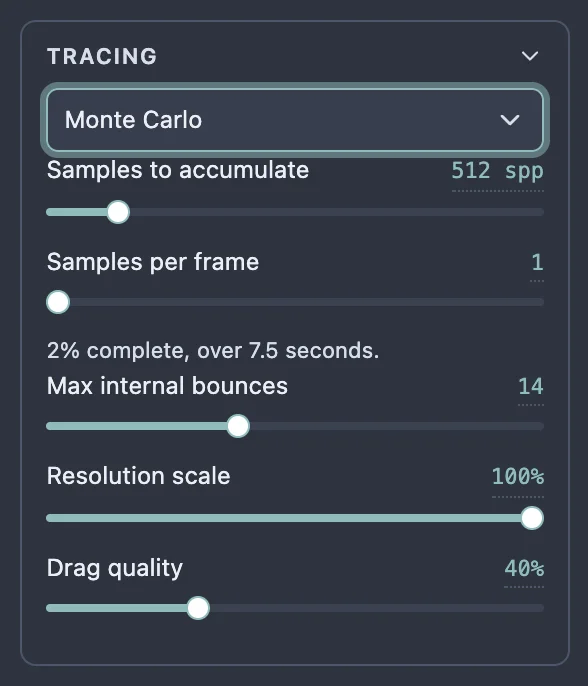
- Samples to accumulate is how much detail the picture gathers before it stops improving – how far the progress line above counts up to. Higher is smoother but takes longer to converge.
- Samples per frame is how much work each individual frame does. Higher sharpens the picture in fewer frames, but each frame takes longer, so the page responds more slowly while it is moving.
- Max internal bounces, Resolution scale and Drag quality are shared with every renderer and behave exactly as described on the Deterministic renderer page, with one difference: light still bouncing when the limit runs out is left dark here, not filled with a tint. If parts of a deep or highly refractive stone look black, raise Max internal bounces (up to 64).
- Facet wireframe is not shown here: the Monte Carlo renderer does not draw it, so the checkbox is hidden whenever this renderer is selected. Switch to Deterministic or Flat to see it again.
Turning the stone
Drag the stone with the mouse to turn it: sideways tilts it to the left or right, up and down tilts it towards or away from you, and holding Shift makes sideways spin it about its own axis instead. Scroll the mouse wheel to zoom. All of this works exactly as with the other renderers. While the stone is moving – dragging, scrolling, or moving the X rotation (spin) or Y rotation (tilt) sliders – the picture drops to Drag quality so it can keep up, and only starts gathering samples towards a settled image once the movement stops. A slider's readout can also be clicked to type an exact number: type the value and press Enter to apply it, or Escape to cancel.
Frosted facets
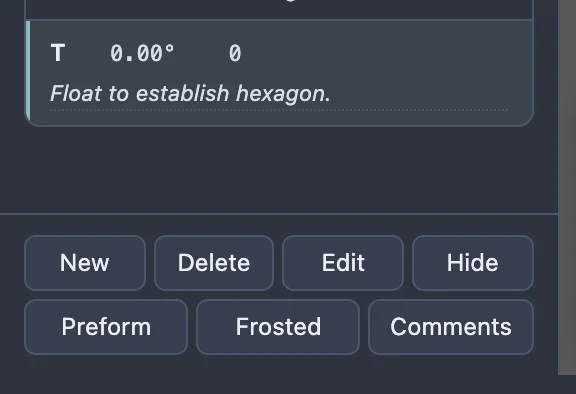
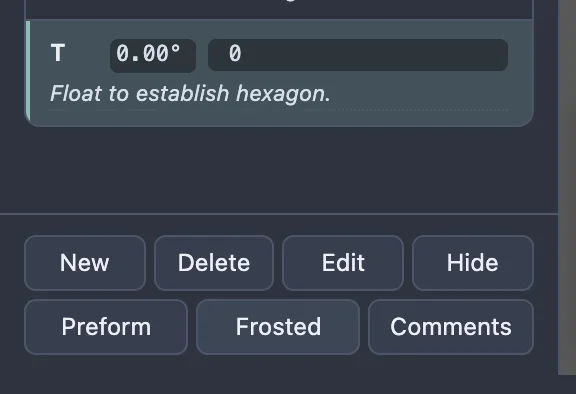
A frosted facet is rough rather than glass-smooth, so it scatters light instead of reflecting and refracting it cleanly. The Monte Carlo renderer draws it as a truly rough surface. To frost a facet, select the tier it belongs to in the cutting instructions on the left – click its row, or use ↑/↓ to move the selection to it – then click Frosted in the row of buttons under the cutting instructions. The tier's row turns bold to show it is marked, and every facet in that tier renders frosted the next time the Monte Carlo renderer draws it. Click Frosted again to unmark it.
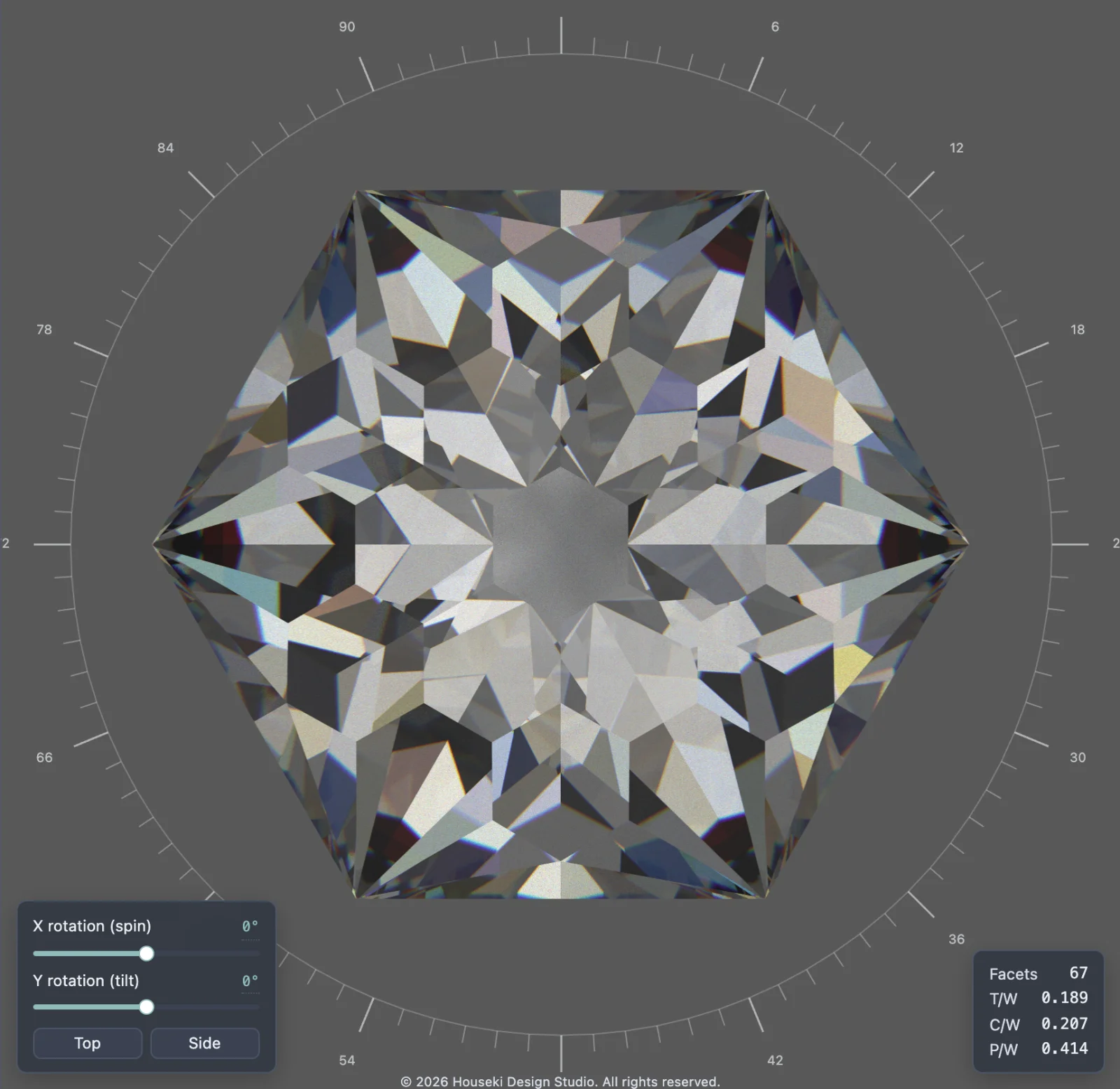
The Deterministic renderer draws frosted facets too, in a simpler way: each one as a single even shade, at once and with no grain. The Flat renderer draws every facet the same, whether or not it is marked frosted.